
Slack Integration
The Slack integration requires creating a dedicated application in your Slack space. The following steps will guide you through the process.
Create a Kitsu Application in Slack
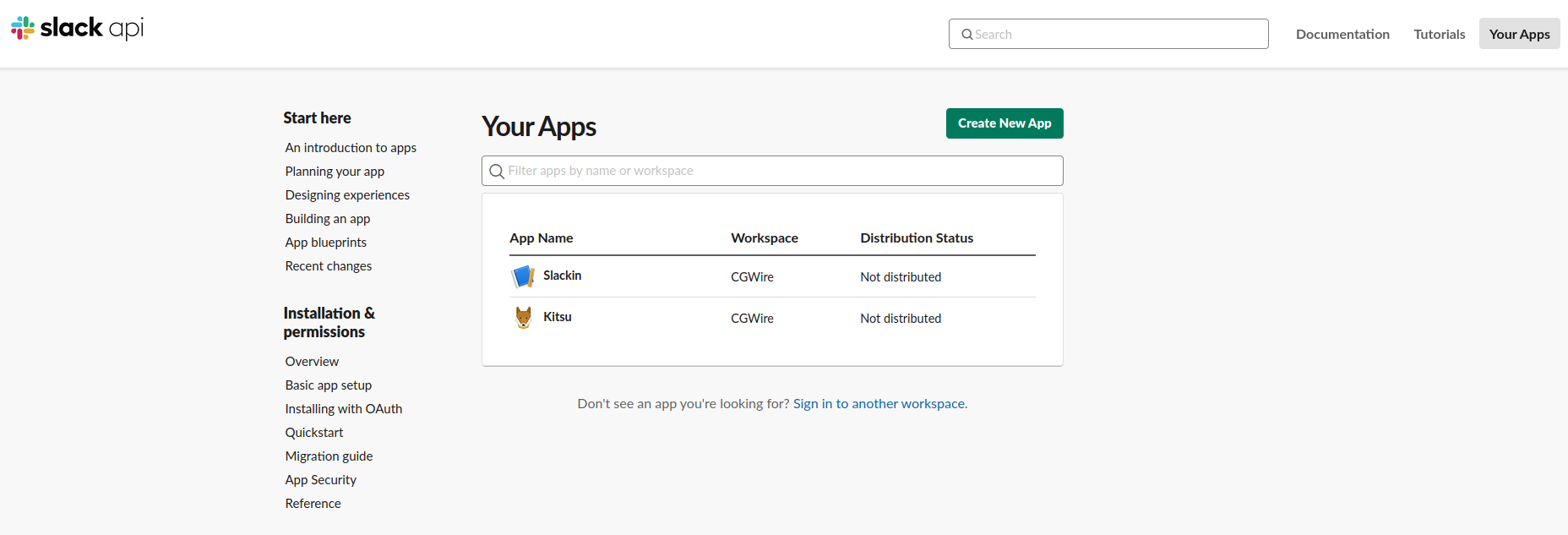
To start, connect to https://api.slack.com/apps.
Click the "Create New App" button:
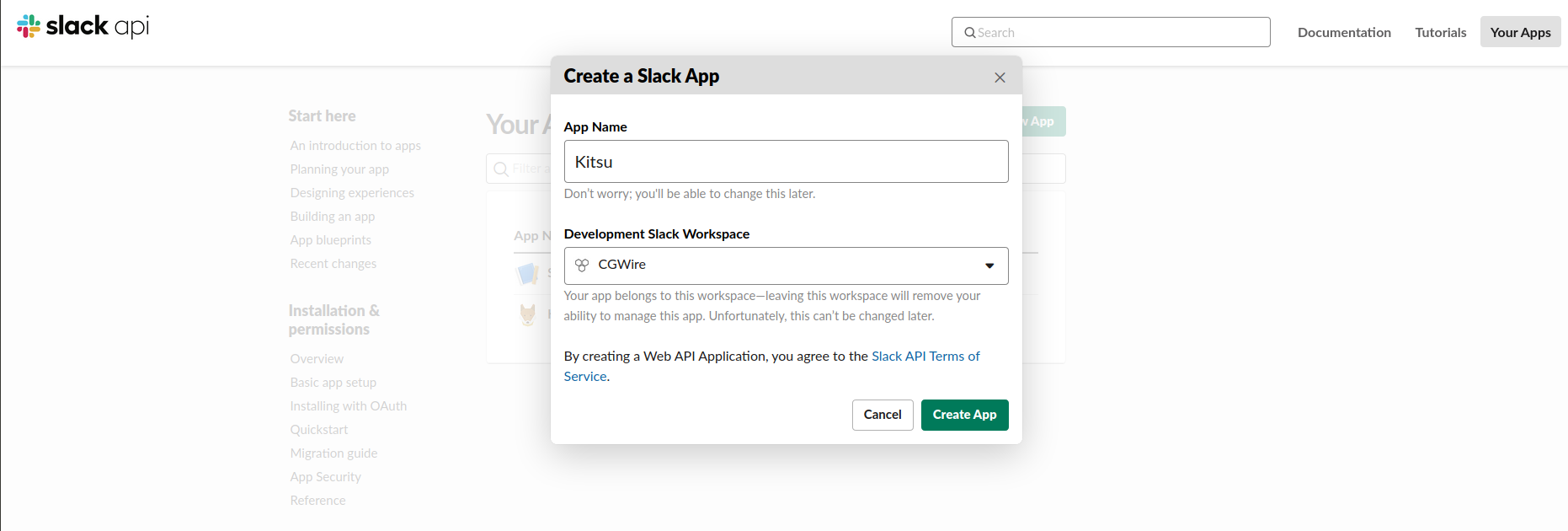
Enter "Kitsu" as the name and choose the workspace you want to link with your Kitsu instance:
Set the Right Permissions
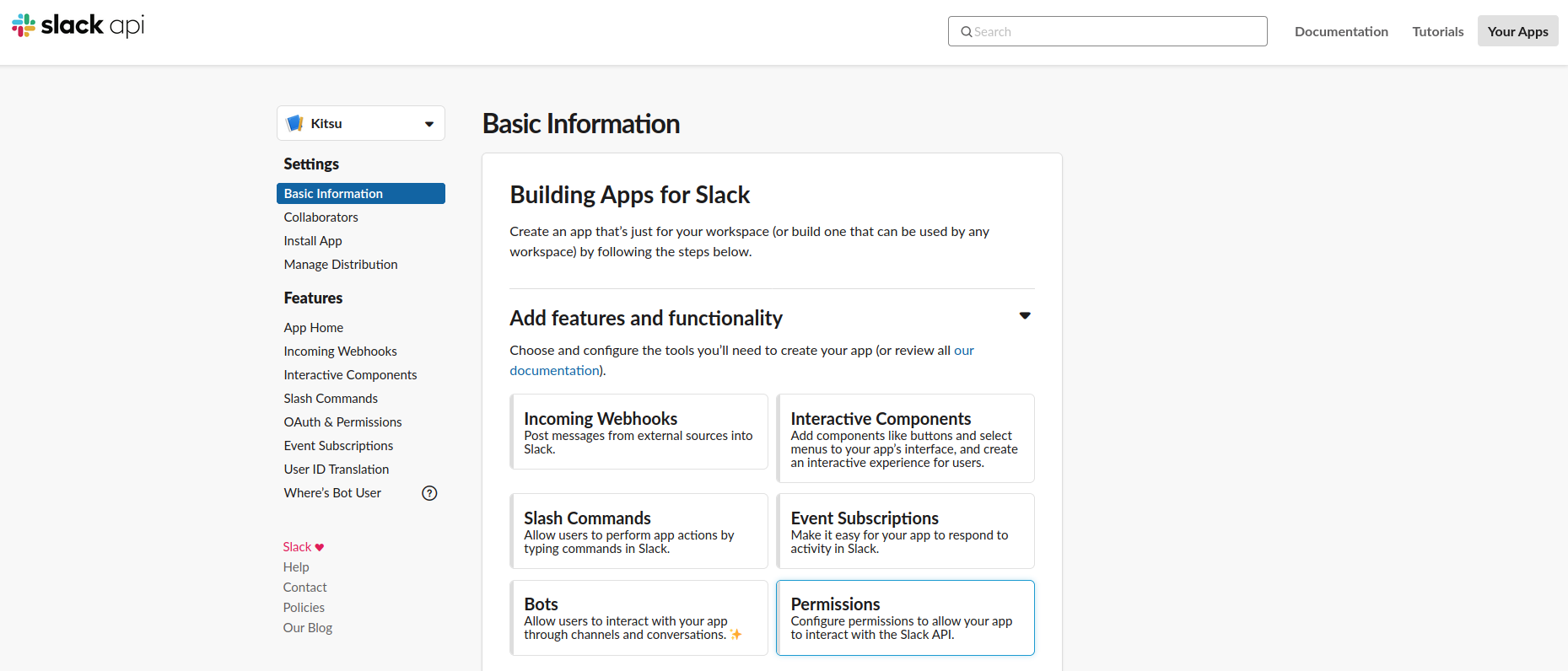
After creating the app, go to the app page by clicking on its name in the list. Go to the Basic Information section and click on the Permissions button at the bottom right:
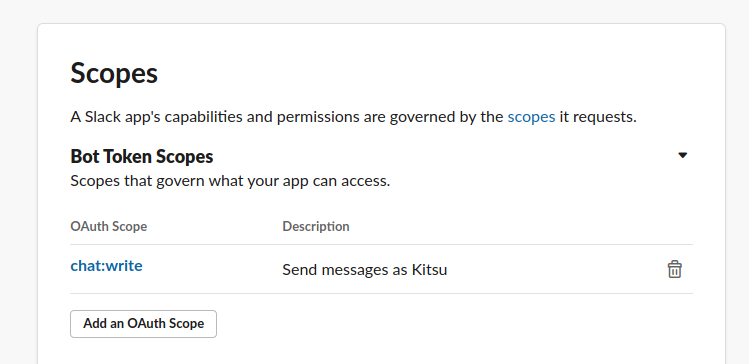
In the scopes section, add the required permission:
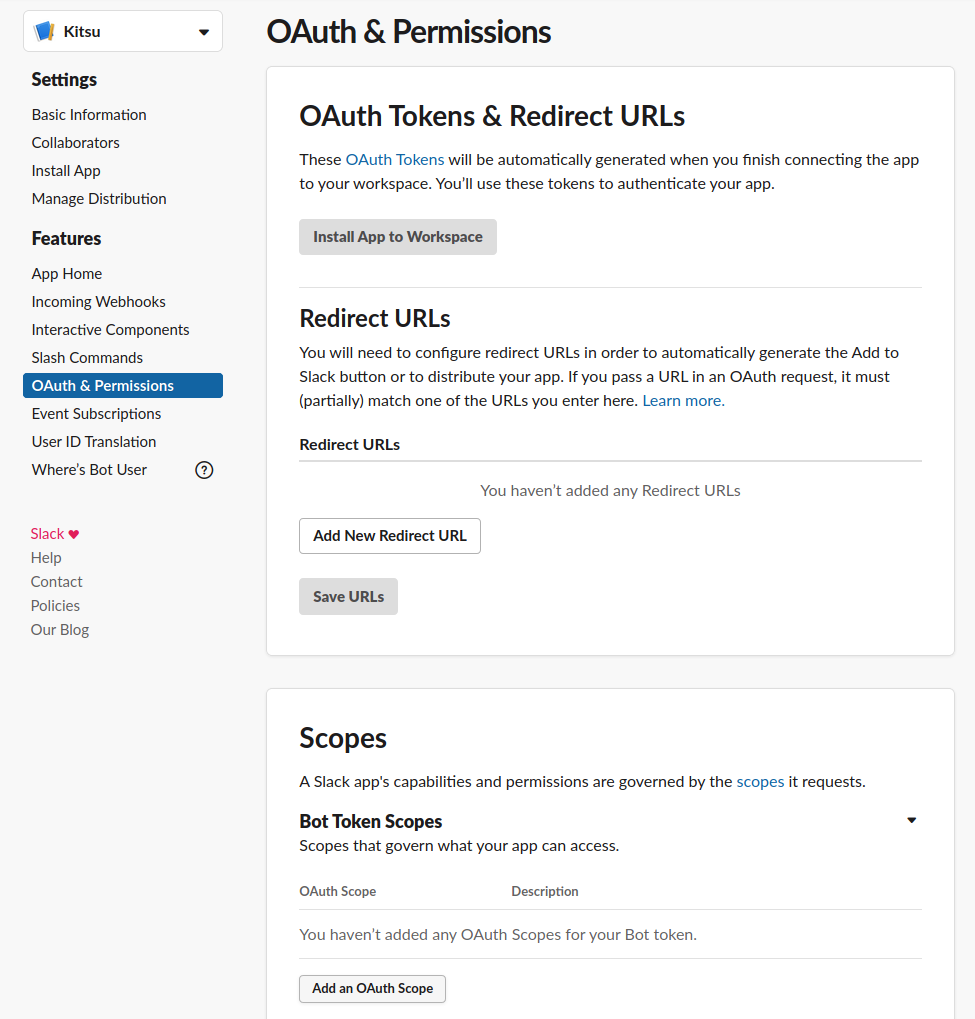
The required permission scope is chat:write:bot:
Install the App in Your Workspace
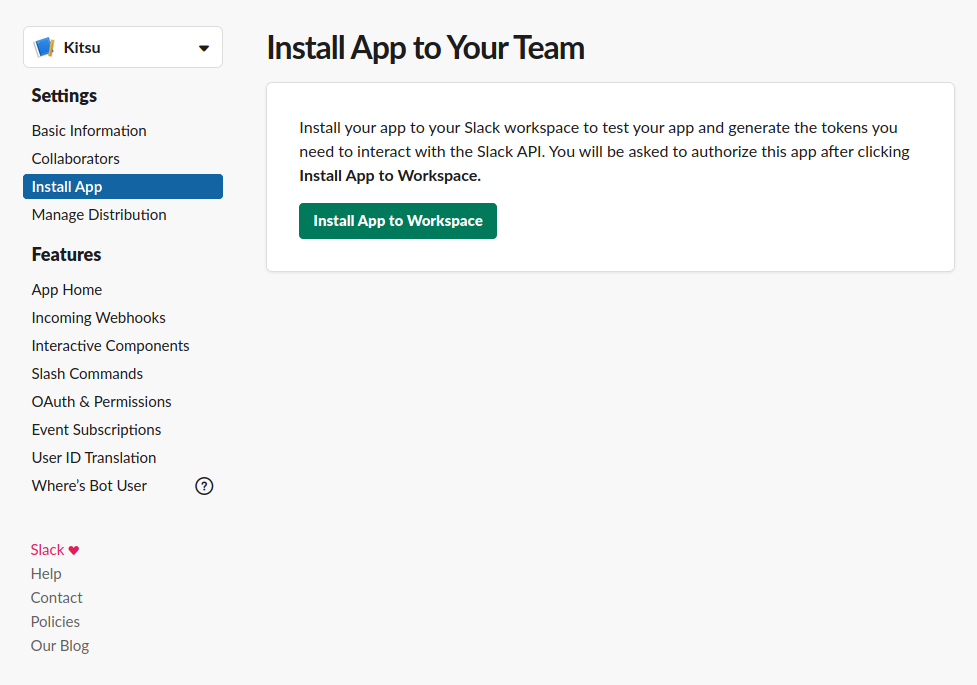
Proceed to the app installation in the workspace. Go to the Install App section and click on Install App To Workspace button to install:
Confirm the installation:
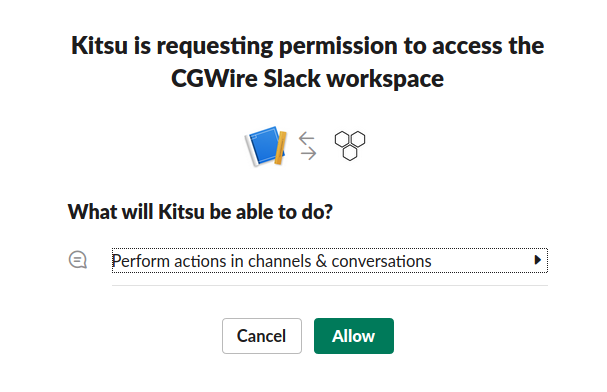
Your Kitsu Slack App is now up and running! You just need to link your Kitsu to the notifications sent to your Slack workspace.
Get the Token
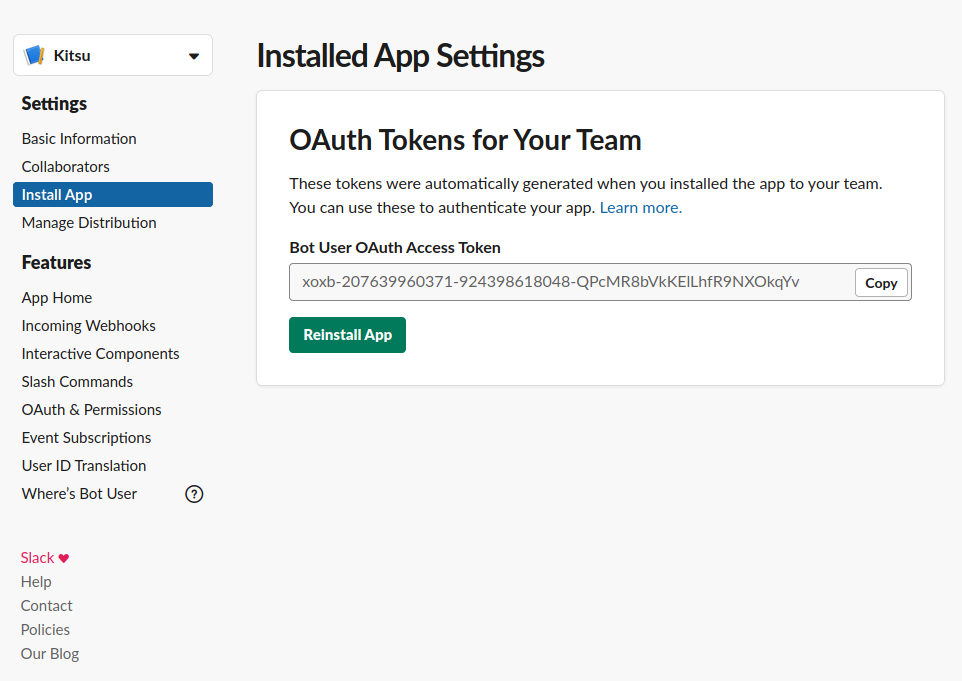
Return to the Install App section. You should see the token needed to link your Kitsu instance to Slack:
Link Kitsu to Your New Slack Application
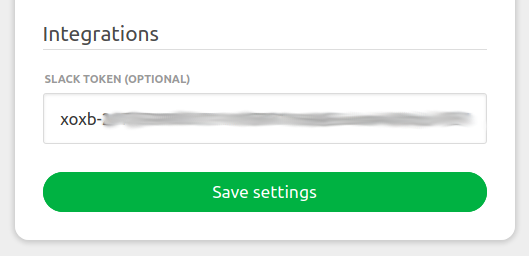
With your valid token, go to the settings page in Kitsu and enter the token:
Enable Slack Notifications in Your Profile
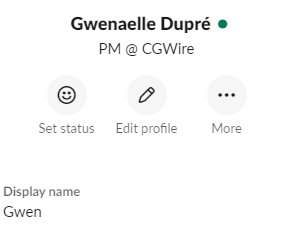
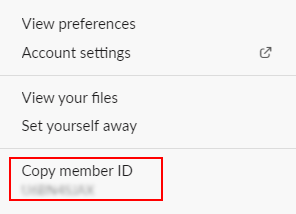
Finally, go to your profile section to turn on Slack notifications. Enter the Member ID you use on Slack, which you can find in your Slack profile by clicking on "More":
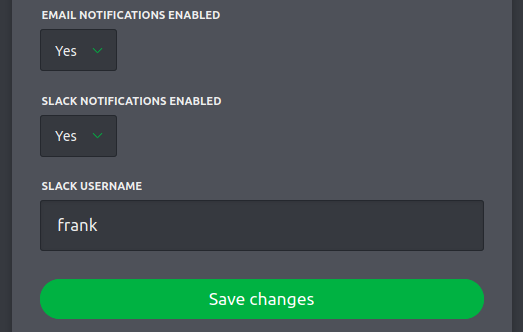
In your Kitsu profile, set the Slack notifications to "on" and enter your Slack nickname:
You can now enjoy notifications directly in your Slack workspace!
